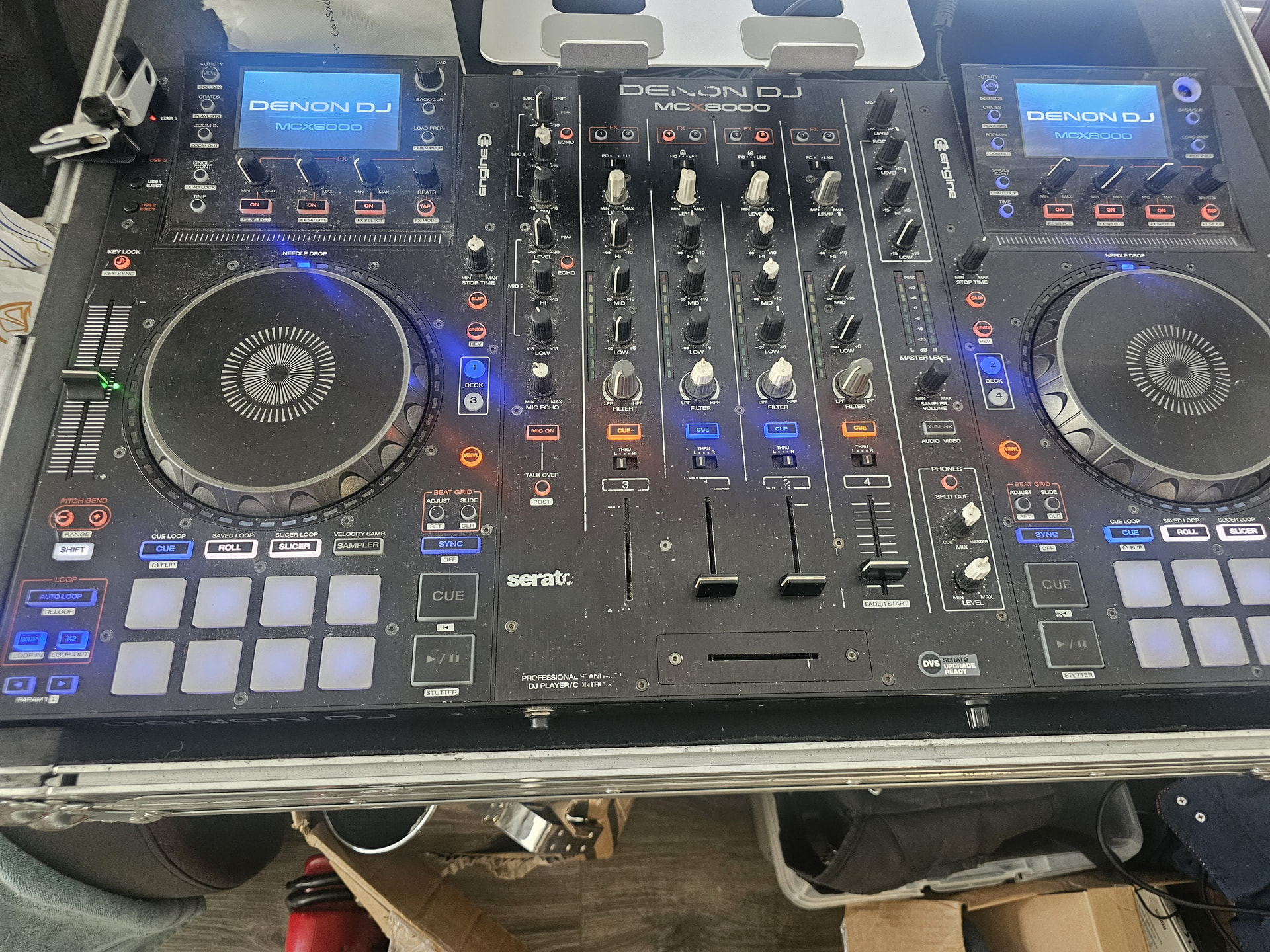
So I’ve been having my Denon MCX8000 for years now. There was a point when I set the brightness a bit high, and now it’s stuck on that setting. I can turn my controller on, and it goes to the DENON DJ blue screen on both sides with no issue.
I’m trying to update the firmware on the controller to see if that would let me control Serato as it used to before. I’m trying the Emergency / Forced Update Method but can’t seem to get it to work either.
I’m using USB 2.0 and follow all the rules. I entered the USB into USB 1 and turned on the controller. After that, I waited until the left deck cue button flashed so I could see if it would start updating. The left deck cue never flashed at all. Am I missing something?
I saw your post about the MCX8000 and ran your problem through an AI tool alongside known Denon DJ community fixes to see if we could find a solution.
The reason your Left Deck CUE button isn’t flashing is likely because the high brightness setting causes the display board to draw too much power, triggering a hard boot-loop freeze at the “DENON DJ” splash screen. Because the mainboard freezes before initializing, it never reaches the point where it can read USB 1 for the emergency firmware update.
Here are the step-by-step methods suggested to get past the frozen screen so you can lower the brightness and run the update:
Method 1: Force Demo / Vegas Mode (Easiest Fix)
Turn off the controller.
Press and hold the VINYL button on the left deck.
While holding VINYL, turn the power switch ON.
This forces the unit into Demo/Vegas mode, which often bypasses the standard boot check.
Power the controller off, wait 5 seconds, and turn it back on normally.
If it boots successfully:
Hold VIEW to open the UTILITY menu.
Lower Screen Brightness to around 50%–60% (Denon recommends keeping this below 100% to prevent power drop issues).
Put your USB drive in USB 1 and attempt the update again.
Method 2: Proper USB Preparation for Recovery
If the unit still won’t read the USB drive:
Use a small USB 2.0 drive (8 GB or 16 GB works best) formatted strictly to FAT32 (MBR partition scheme).
Ensure only the firmware .bin file is in the root directory (not inside a folder or zip file).
If you were trying to jump directly to the latest firmware version, try restoring an earlier version (e.g., v1.5 or v2.0) first via recovery.
Method 3: The Display Ribbon Cable Bypass
If the power draw from the high-brightness screens continues to prevent booting:
Unplug the power and all external cables.
Open the side/bottom casing to access the display ribbon cable.
Temporarily unplug one of the screen ribbon cables.
Power on the unit. Reducing the load from one screen often allows the mainboard to successfully boot.
Access the UTILITY menu on the remaining working screen, drop Screen Brightness down to 50%, turn off the controller, and reconnect the display cable.
Hope this helps you get past the frozen screen and unbrick your controller!