Hello! I’ve made Traktor Pro Mapping for Denon DJ Prime 4. With a high degree of probability it will also be suitable for Prime 4+
Almost all buttons work the same way as in Engine OS. Some special definitions:
Browser unit
- Browser encoder push - open/close Only browser view
- Back/Fwd Buttons - Favorite playlists jump back/forward
- < Load - load selected track do deck A if deck 1 active or deck С if deck 3 active
- Load > - load selected track do deck B if deck 2 active or deck D if deck 4 active
- Shift + < Load/Load > - instant doubles A/B
- View (hold) - load selected in browser track to preview player and play it
- View (hold) + Browser encoder turn - move through track in preview player
Decks
- Beatjump - beatjump
- Shift + Beatjump - beatjump step size selector
- Sync - sync
- Shift + Sync - set as Master
- < / > (Buttons to the right to Pad Mode buttons) - semitone up/down
- Shift + > - assign FX Unit 4 to current deck
Pad Modes
Cue - hot cues
Loop - fixed size loops:
- Pad 1 - 1/8
- Pad 2 - 1/4
- Pad 3 - 1/2
- Pad 4 - 1 (color mark)
- Pad 5 - 2
- Pad 6 - 4 (color mark)
- Pad 7 - 8
- Pad 8 - 16 (color mark)
Roll - rolls. Hold only
- Pad 1 - 1/8 with flux on
- Pad 2 - 1/4 with flux on
- Pad 3 - 1/2 with flux on
- Pad 4 - 1 with flux on
- Pad 5-8 - Beatmasher 2 roll from here How to map instant effects in TRAKTOR | Native Instruments Blog
Slicer
When stems track is loaded
Stems control
- Pad 1 - Drums Mute On/Off
- Pad 2 - Bass Mute On/Off
- Pad 3 - Other Mute On/Off
- Pad 4 - Vocals Mute On/Off
There is no volume and filter control at the moment. Need knobs or encoders for this. Maybe FX Unit knobs? Will it be acceptable?
When non stem track is loaded
Nothing at this moment. Wait for the ideas
FX Units
Traktor FX Units 1 & 2 full control according to Traktor software interface knobs and buttons locations. For example: Traktor pro’s FX Unit Dry/wet knob is the first. Denon’s FX Unit Dry/wet knob is the last. In my mapping the first Denon’s FX Unit knob is Dry/Wet
- ON Button - FX On
- FX Select knob - FX Dry/Wet
- Shift + ON button - Change FX Unit mode: Single/Group
- Shift + FX Select knob - FX Select in Single Mode
- Other buttons - as in Traktor
- Shift + knobs in Group Mode - Select FX to the corresponding slot
- FX Parameter 1/2, Dry/Wet knobs - corresponding slot FX amount
- Parameter, Reset, “<” buttons - corresponding slot FX on
- “>” button - not mapped
- Mixer channel FX buttons - select FX Unit for the channel
Decks A and B - blue jog wheel LED ring
Decks C and D - green jog wheel LED ring
Jog wheels LCD screens and FX units OLED screens not available via midi
Denon DJ AiOs works with computer software like Traktor or Serato only in Computer Mode. You can activate it in the Source menu - tap the computer icon at the top of the display.
To use this mapping you need to import it in Controller Manager settings. I think you will need to check Effect Settings in import settings parameters.
After mapping import check IN and OUT port for all 4 mappings parts. There must be “PRIME 4 Control Surface”
In Output Routing settings choose Out 3 an 4 for Output Monitor. For Output Master there will be many channels. Unfortunately i haven’t had a chance to check their compliance. You’ll have to determine which one you need by yourself.
If there will no Beatmasher 2 FX in Roll mode probably you will need to manualy setup this FX in mapping: Choose Device - Denon Prime 4 VT LEFT PADS. Go to mapping table, sort it by comment column, find Roll Beatmasher Deck A comments. Choose Effect 1 Selector among them and then choose Beatmasher 2 in Set to Value field.
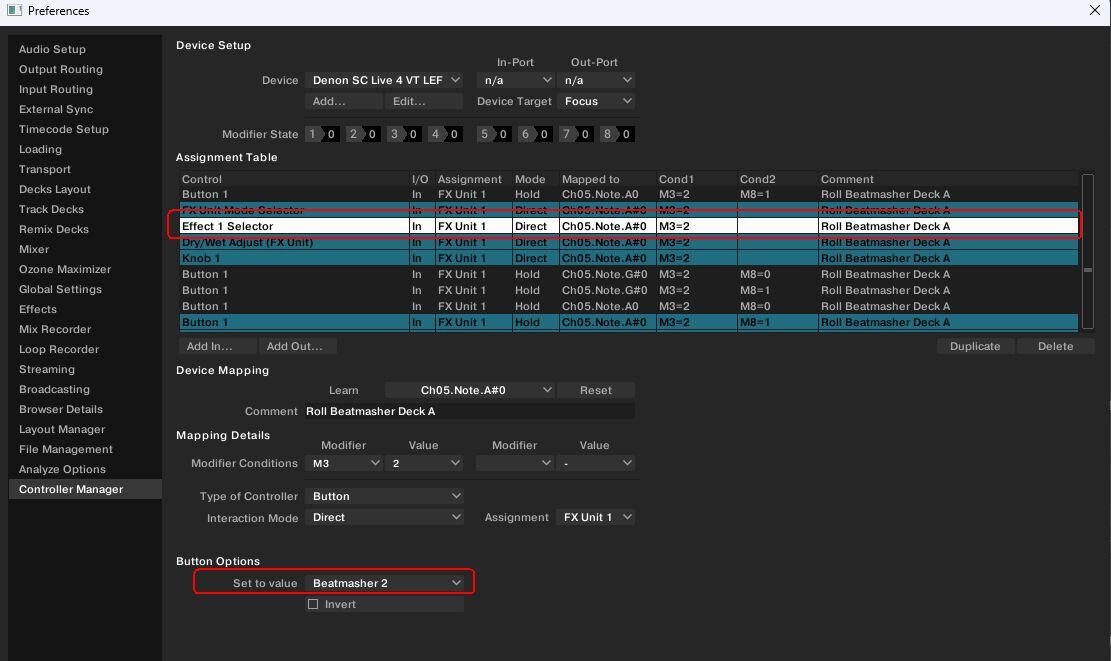
Repeat for deck C in this part. Then go to Device - Denon Prime 4 VT RIGHT PADS and do all for deck B and D
Channel fader in Traktor Pro always up on startup regardless of the position of real faders on the Prime 4. It needed to move each fader a little to make Traktor see real position.
It is alpha version of the mapping. Maybe it will be one and only. But i will try to fix bugs if they will be and add new features.
Denon_DJ_Prime_4_VT_0.tsi (2.7 MB)
